⚠ Stop notes:
First Pickup
· WILMINGTON, NC
— * Provide shipper with carrier name, MC# and ask to check side of truck prior to loading. Also ask if shipper provides seal once driver is loaded if not driver needs to stop for seal en route to shipper.
Unlocked
Lock this load before contacting carriers (15-minute hold).
1
Lock load
2
Call & log
3
Get rate approved
4
Book load
5
Capture capacity
Step 1Lock this load before calling carriers (15-minute hold).
↻ Reload candidates (1)
Open loads picking up from KY on/after
06/04.
Pitch as a 2-load combo to the booked carrier.
First Pickup · WILMINGTON, NC
— * Provide shipper with carrier name, MC# and ask to check side of truck prior to loading. Also ask if shipper provides seal once driver is loaded if not driver needs to stop for seal en route to shipper.
Load is unlocked. You can log this call as intel without claiming the load.
Submit a rate for approval
🚛 Log capacity for any carrier on this load
Manager view — log capacity for any carrier in the context of this load.
Use cases: a carrier called offering a truck at this lane's destination;
you found out at delivery a different carrier has open capacity here.
Activity
When
Action
By
Detail
06/0211:37
Status updated (TAI)
—
status=Committed
06/0209:59
Status updated (TAI)
—
status=Quote
06/0209:59
Shipment created (TAI)
—
status=Quote
They passed — let's get more info
Capture this carrier's open trucks and preferred lanes while you're on the call.
👋 Welcome — quick tour for testers
You're testing CarrierCRM in dev mode. Two tools are available to help
you give feedback and review the app from any role.
1. Feedback widget
Find a bug, have an idea, or notice a confusing label? Use the
feedback button to file it. Your submission is attributed to you,
even if you're acting as a different role in the role switcher below.
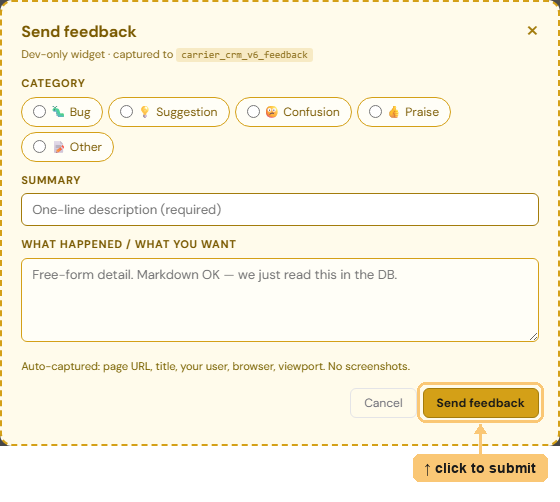
Screenshot pending — drop feedback-widget.png into static/v6/onboarding/ to populate this slot.
2. Test as Role (the bottom bar)
The dark bar at the bottom of every page lets you take on a teammate's
identity to see what their role would see. Pick a rep, manager, or admin
from the dropdown — the page reloads as that person. Feedback you file
while impersonating still records you as the submitter,
with a note about the role you were testing.

Screenshot pending — drop test-as-role.png into static/v6/onboarding/ to populate this slot.
🧪 Test as:
Signed in as Dev UseradminDEV_MODE only · feedback is attributed to the signed-in user
Send feedback
Dev-only widget · captured to carrier_crm_v6_feedback