| Load # | Lane | Miles | Pickup | Rate | Equip |
|---|---|---|---|---|---|
| 129564148 | MURRAY, KY → MURRAY, KY | 1232 | 06/050800 | $4500 ($3.65/mi) | Van |
- First Pickup · WILMINGTON, NC — * Provide shipper with carrier name, MC# and ask to check side of truck prior to loading. Also ask if shipper provides seal once driver is loaded if not driver needs to stop for seal en route to shipper.
- Last Drop · FLORENCE, KY — appt confirmed for 06/03 at 0900-JP
| When | Action | By | Detail |
|---|---|---|---|
| 06/0214:08 | Status updated (TAI) | — | status=Dispatched |
| 06/0212:15 | Lock acquired | sam.rep@htlfreight.com | by=sam.rep@htlfreight.com |
| 06/0211:30 | Status updated (TAI) | — | status=Ready |
| 06/0211:30 | Status updated (TAI) | — | status=Ready |
| 06/0207:01 | Status updated (TAI) | — | status=Ready |
| 06/0116:06 | Status updated (TAI) | — | status=Ready |
| 06/0107:57 | Status updated (TAI) | — | status=Ready |
| 05/2916:03 | Status updated (TAI) | — | status=Ready |
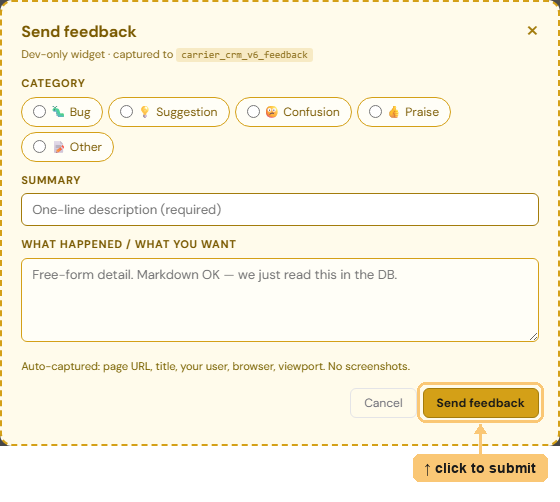
You're testing CarrierCRM in dev mode. Two tools are available to help you give feedback and review the app from any role.
Find a bug, have an idea, or notice a confusing label? Use the feedback button to file it. Your submission is attributed to you, even if you're acting as a different role in the role switcher below.
The dark bar at the bottom of every page lets you take on a teammate's identity to see what their role would see. Pick a rep, manager, or admin from the dropdown — the page reloads as that person. Feedback you file while impersonating still records you as the submitter, with a note about the role you were testing.
